Customer Self Service Guide
Everything you can do in your Universal Elements customer portal — view your invoices and receipts, see your subscriptions, request additional licences, and tell us about a payment so your Tax Invoice and Receipt reach you automatically. This guide walks through each screen.
1 Signing in
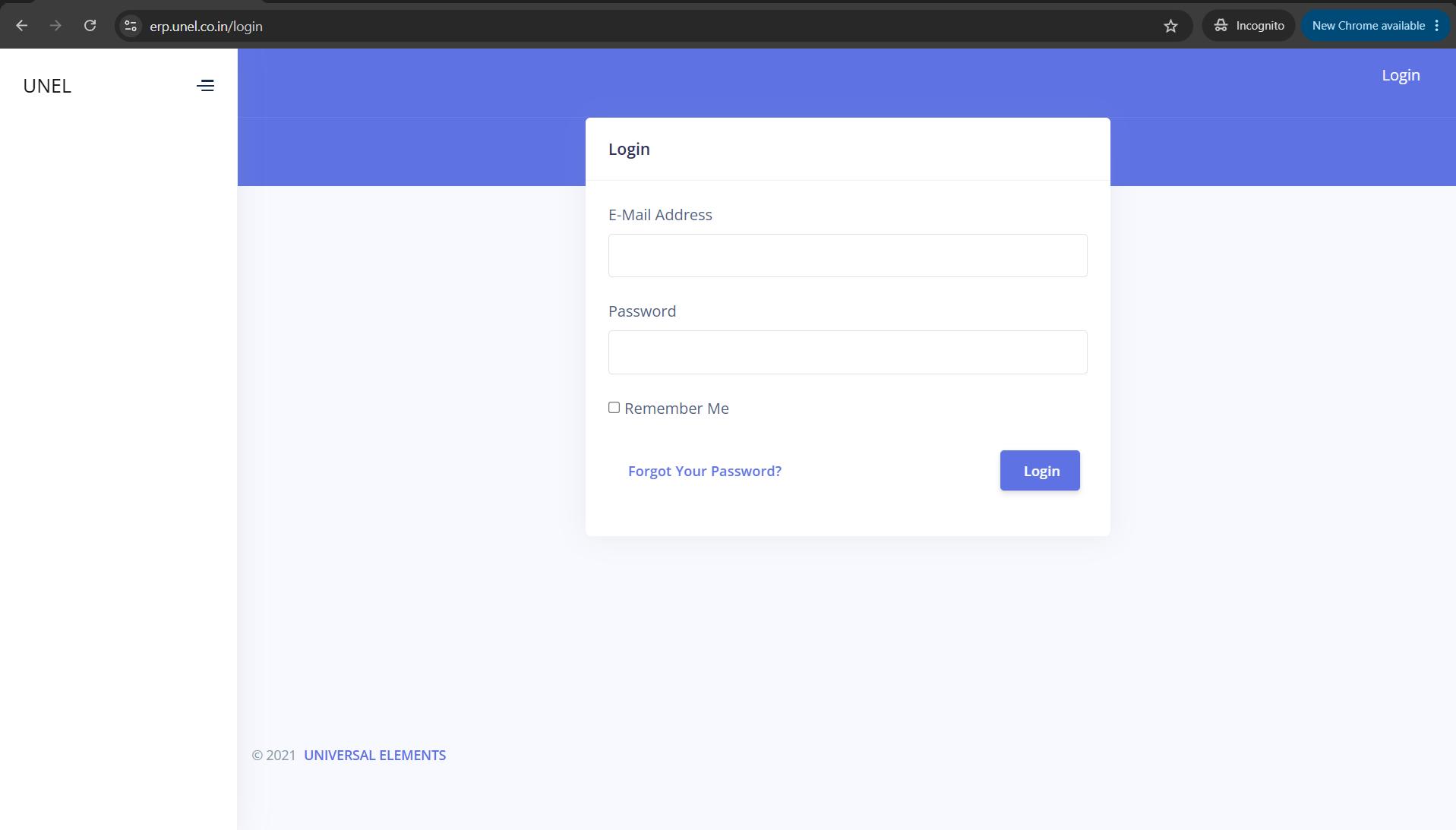
Open https://erp.unel.co.in/login in your browser.
- Enter the e-mail address we hold for your account.
- Enter your password.
- Tick Remember Me to stay signed in on your own device.
- Click Login.
2 Your dashboard & the menu
After signing in you land on your Dashboard. Everything is reached from the menu on the left.
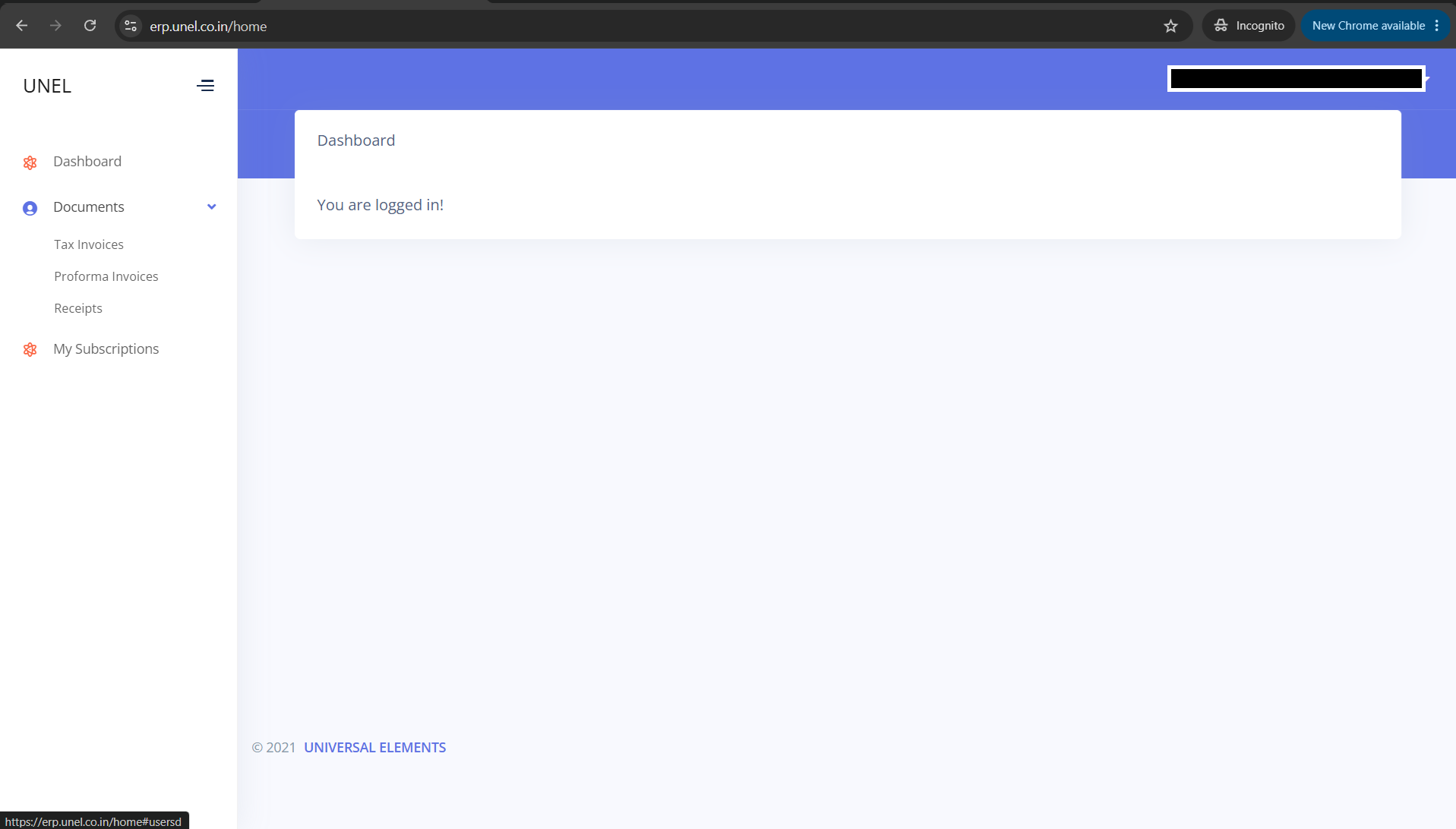
What each menu item is for
3 Tax Invoices
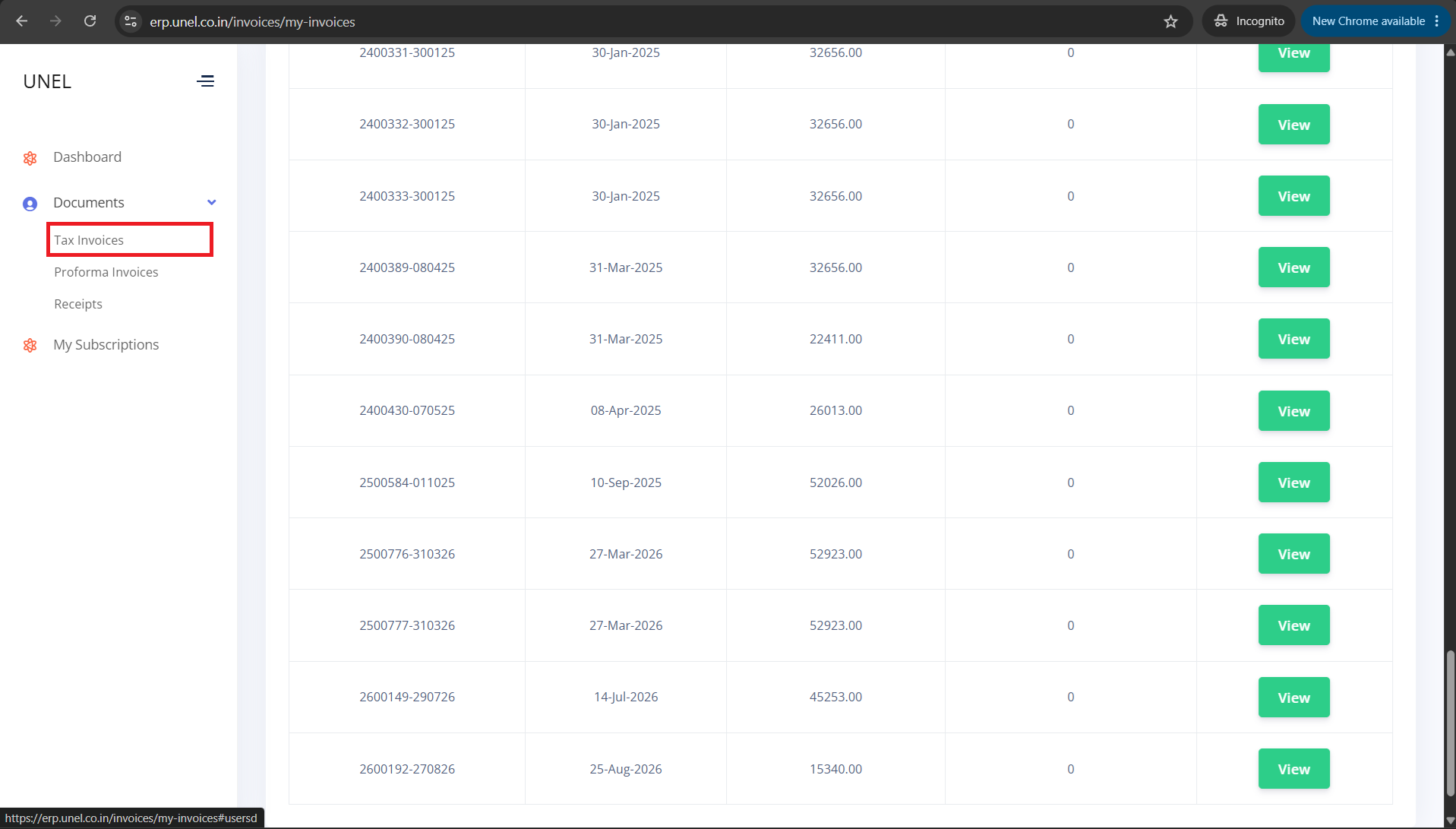
Documents → Tax Invoices. Your GST tax invoices, newest and oldest together.
Each row shows the Tax Invoice number, its date, the invoice total, and the balance amount still outstanding on it. Click the green View button on any row to open the full invoice, where you can read it or download it as a PDF.
4 Proforma Invoices
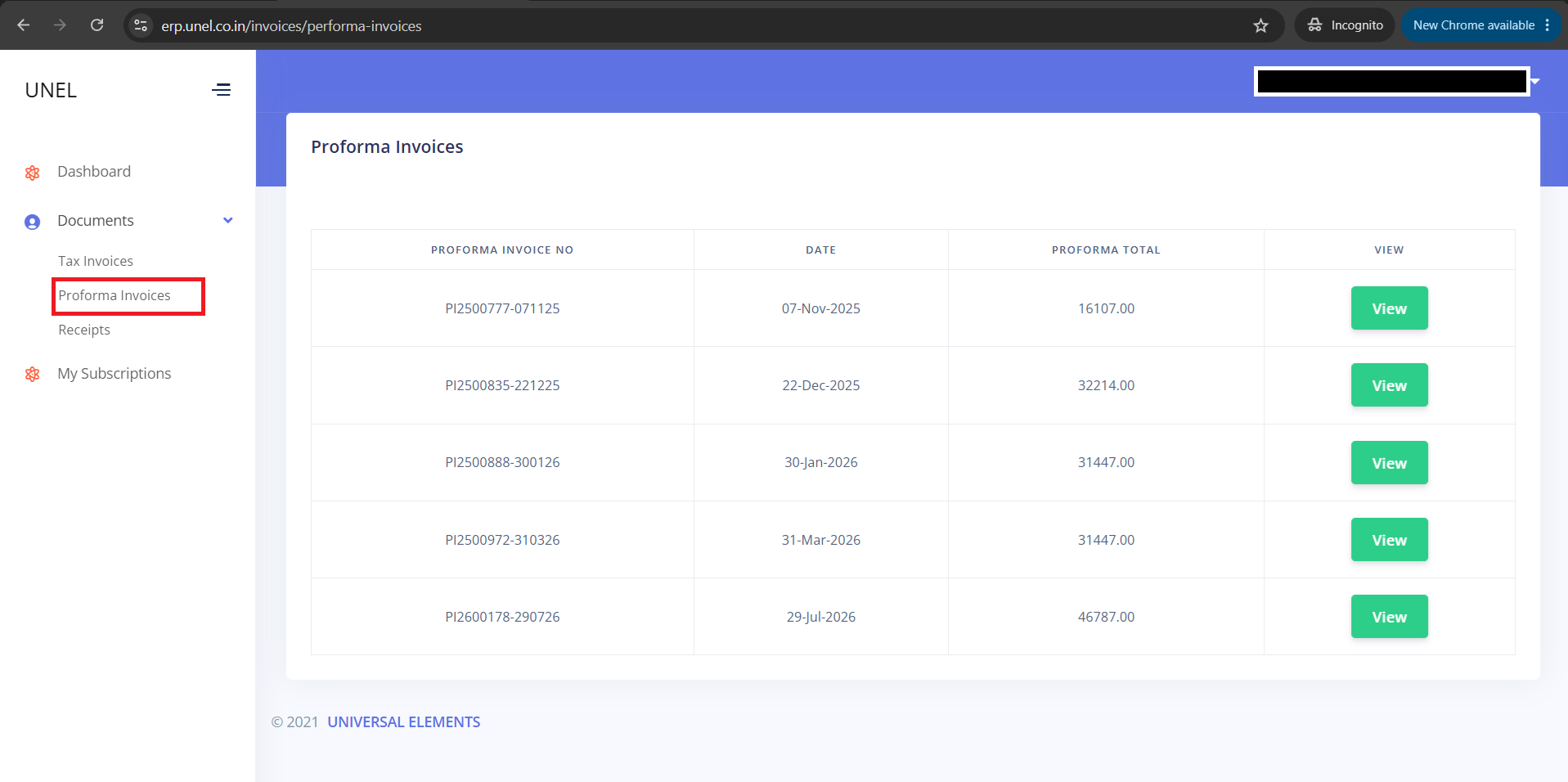
Documents → Proforma Invoices. A proforma is a request for payment; the tax invoice follows once the payment reaches us.
Each row shows the Proforma number, its date and the proforma total. Click View to open the proforma in full — and, at the bottom of that page, to tell us the reference for a payment you have made (see section 8).
5 Receipts
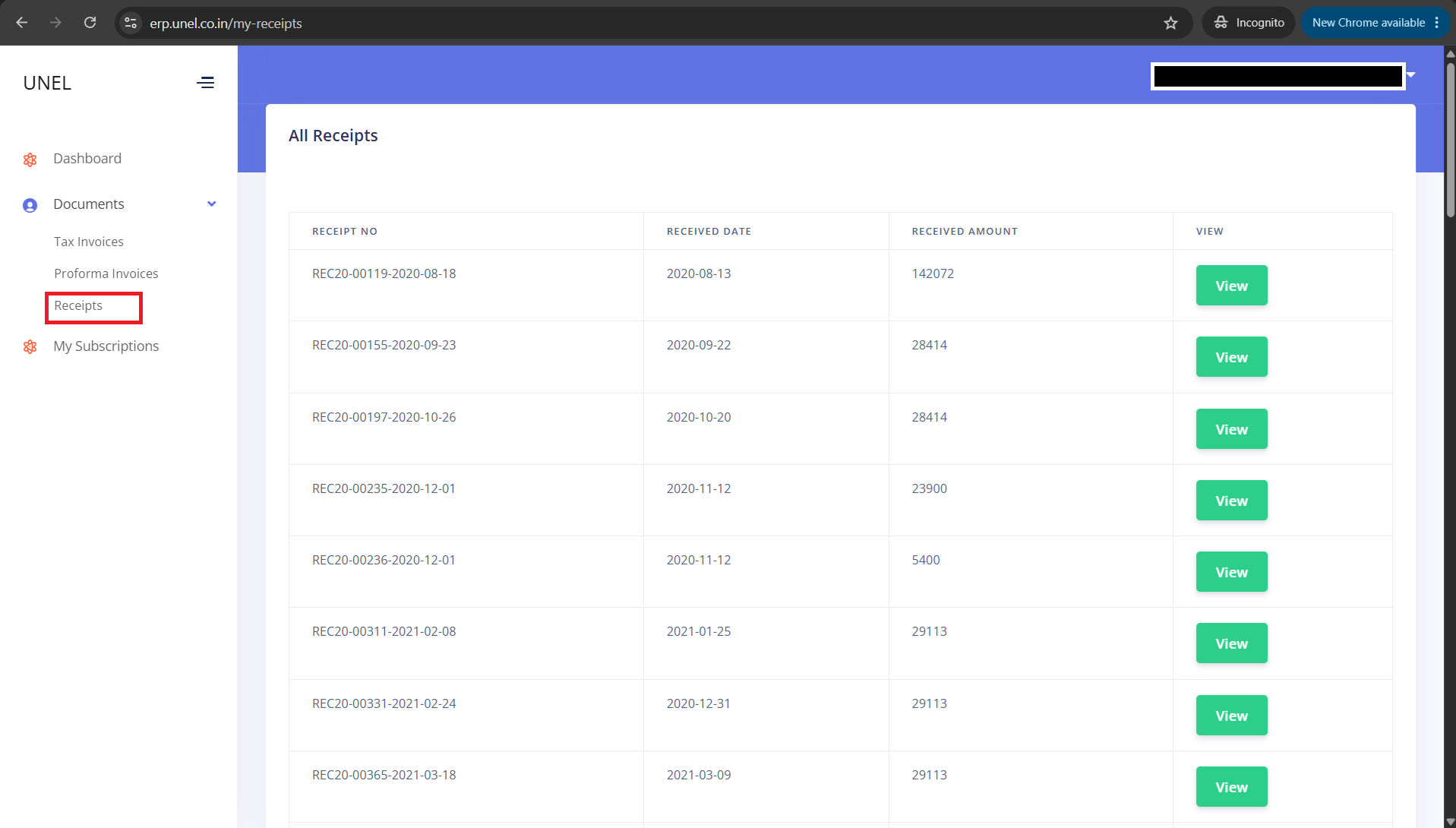
Documents → Receipts. Every receipt we have issued for money received from you.
Each row shows the Receipt number, the date received and the amount received. Click View to open and download any receipt.
Statement of Accounts
Documents → Statement of Accounts. Your ledger account with us for a financial year (April to March): every Tax Invoice and every payment we have received, with the balance at the end. Choose the year from the list. The year in progress is shown up to today.
Click Print / PDF to print it or save it as a PDF for your records, or Download Excel for a spreadsheet. If the balance does not agree with your books, write to accounts@unel.co.in and we will reconcile it with you.
6 My Subscriptions
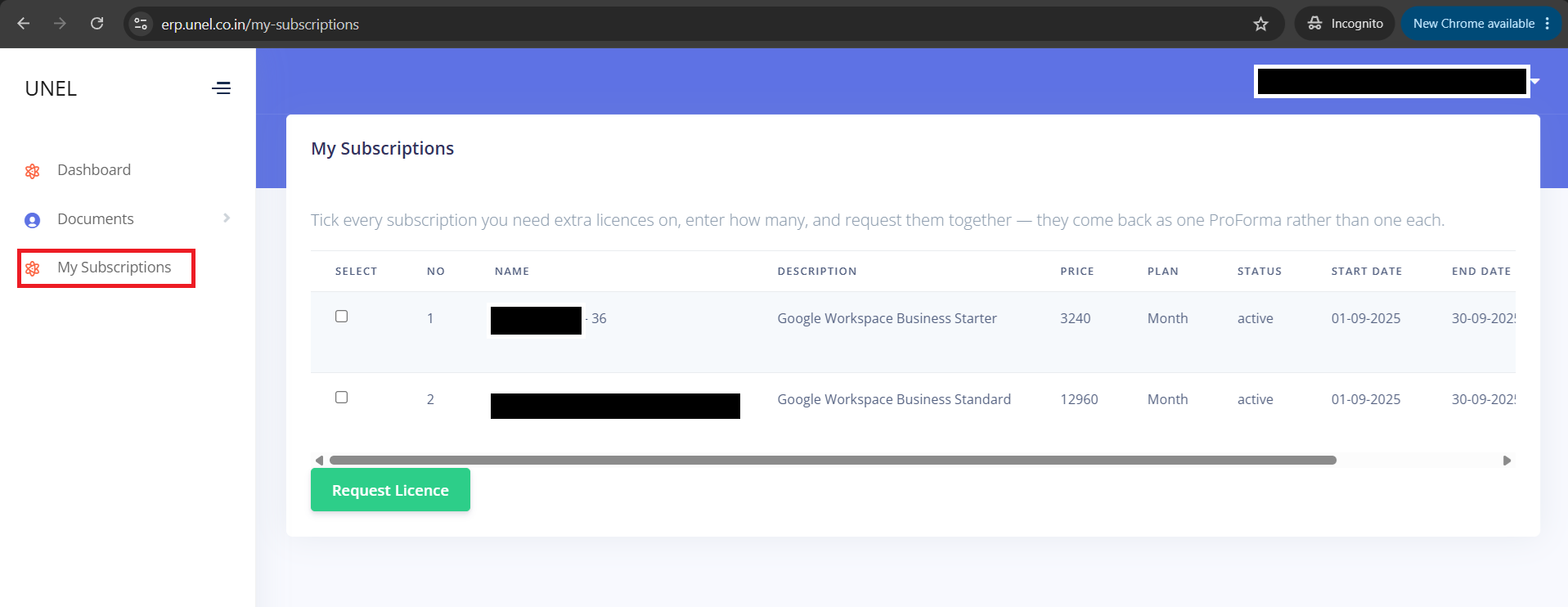
My Subscriptions. The Google Workspace subscriptions on your account.
For each subscription you can see its name, description (the Workspace edition), price, plan, status, and the start and end dates of the current term. This is also where you ask for more licences — covered next.
7 Requesting additional licences
Need more seats on one or more subscriptions? Request them here — they come back to you as a single ProForma, not one per subscription.
Pick the subscriptions and how many extra licences
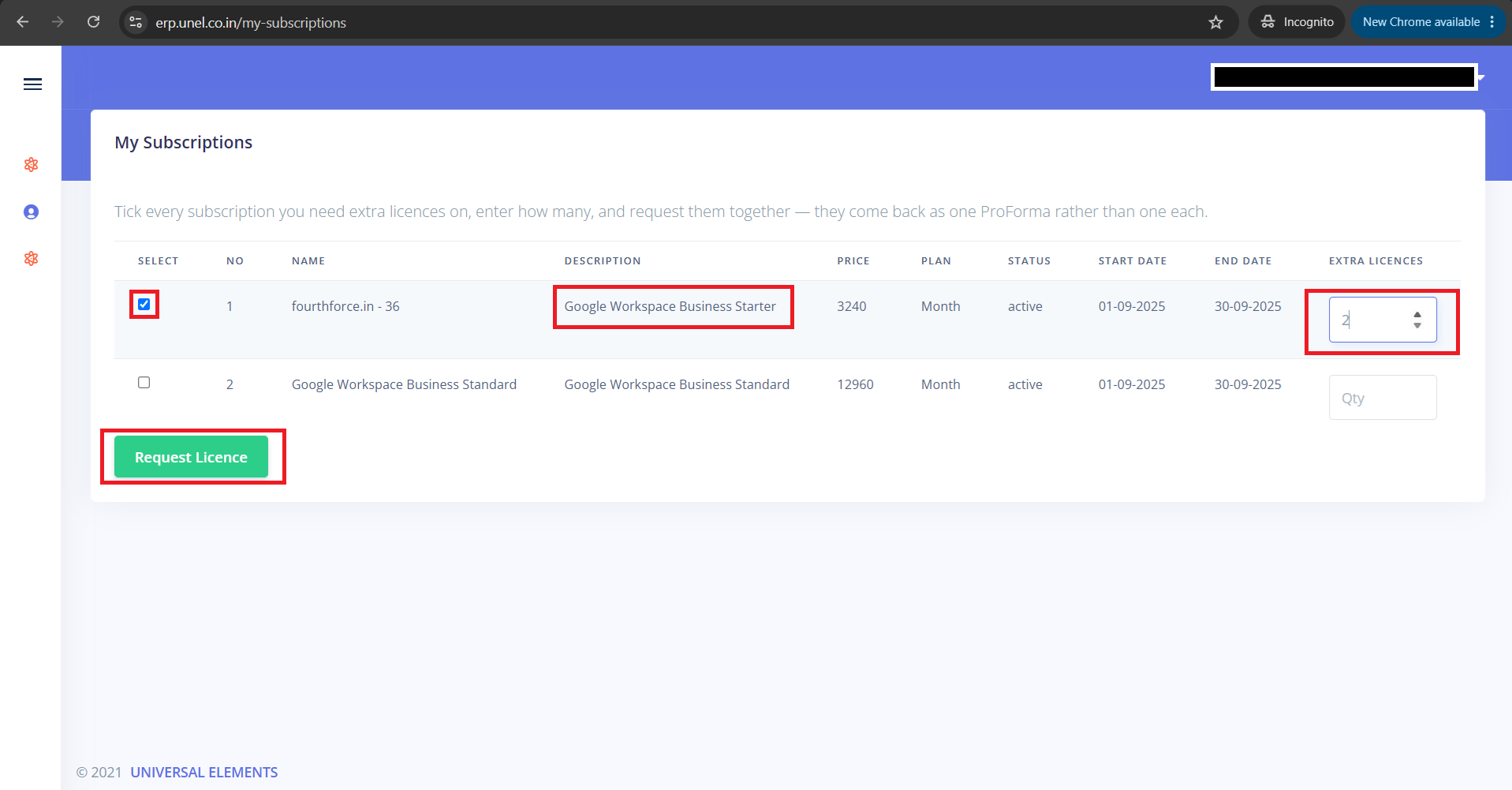
On My Subscriptions, tick the Select box for each subscription you need extra licences on, type the number of seats in the Extra Licences field, and click the green Request Licence button. This takes you to a draft ProForma.
Check the draft and confirm
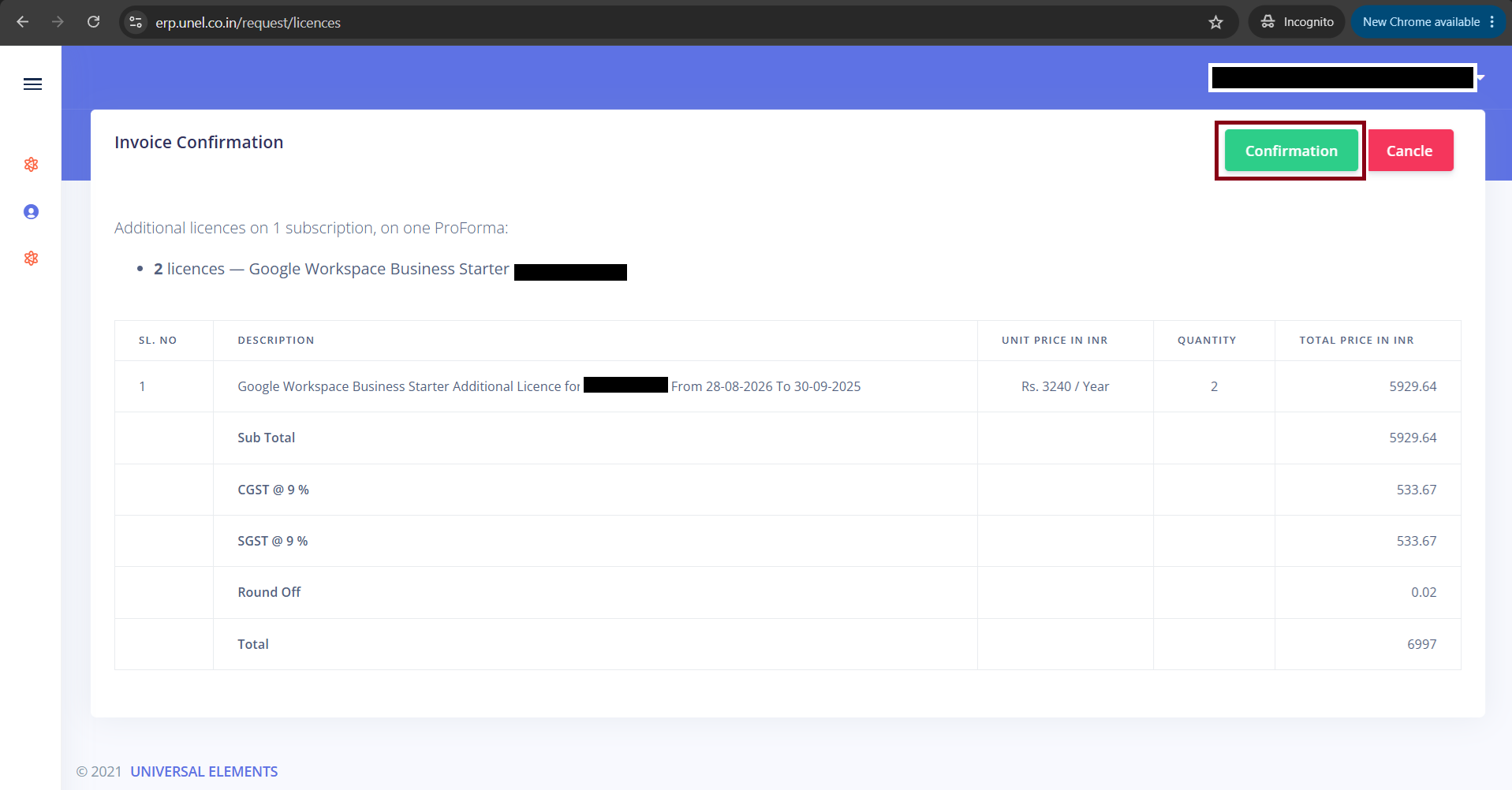
The Invoice Confirmation page shows exactly what will be billed — the licence, the unit price, the quantity, GST, and the total. If it is correct, click the green Confirmation button to raise the ProForma. (Click Cancel if you have changed your mind — nothing is raised.)
Your ProForma is raised
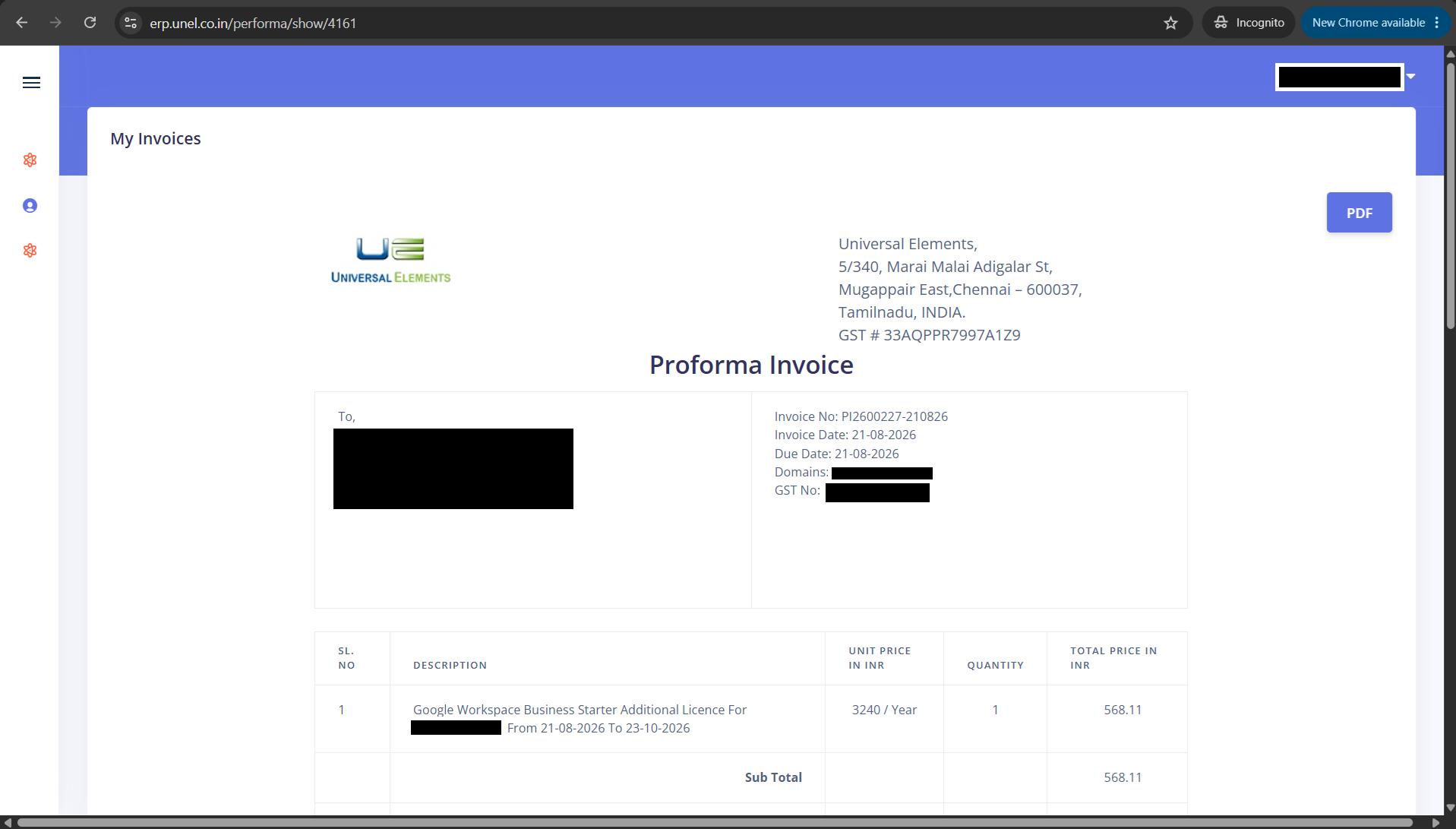
A Proforma Invoice is created and shown to you in full, with our bank details and a PDF button to download it. You will also find it any time under Documents → Proforma Invoices.
8 Paying, and what happens next
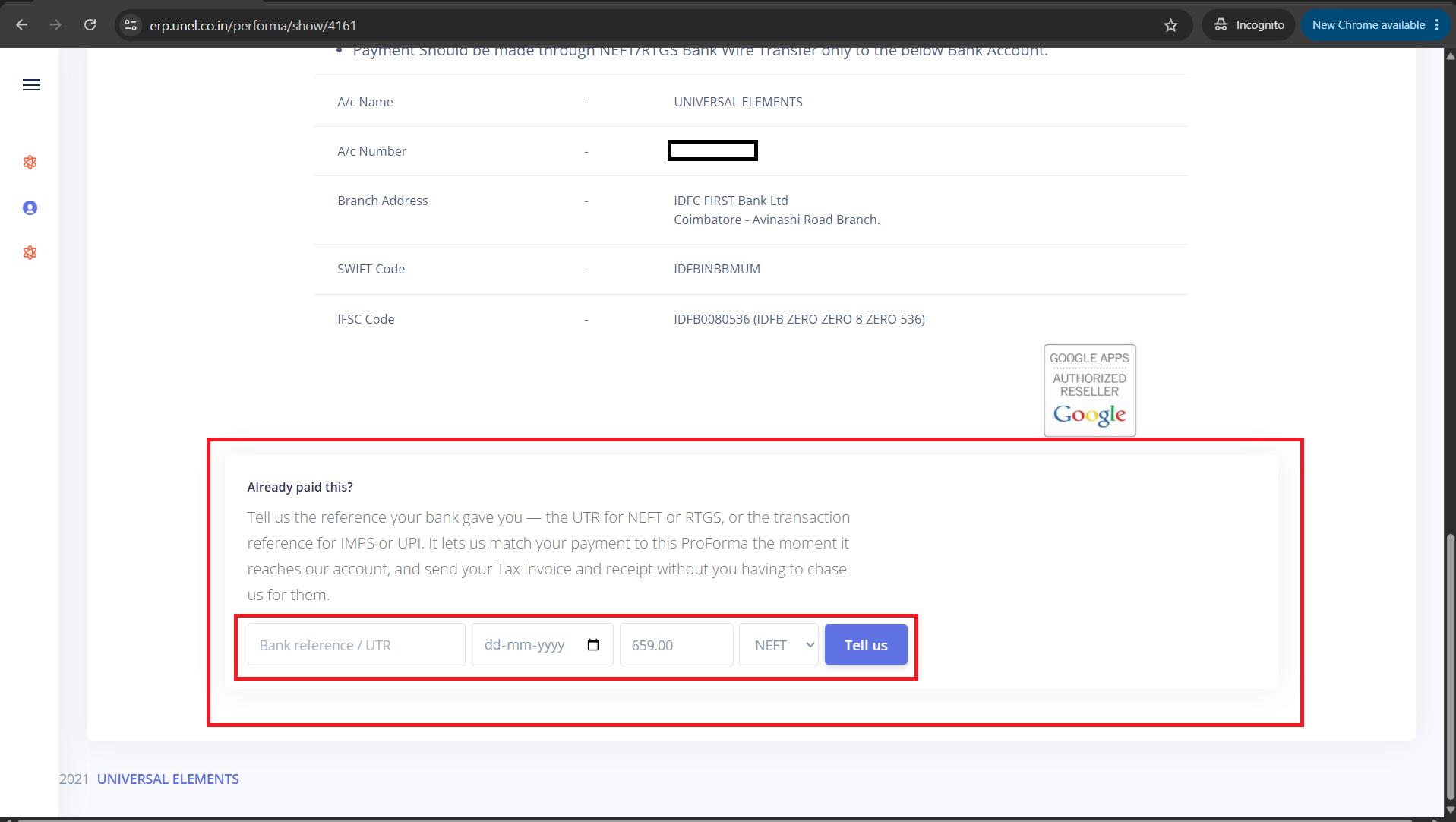
Scroll to the bottom of any ProForma once a bank transfer is made, and tell us the payment reference details.
The foot of the ProForma shows the bank account to pay into (NEFT / RTGS / IMPS / UPI). Once you have paid, use the “Already paid this?” box to tell us the reference your bank gave you — the UTR for NEFT/RTGS, or the transaction reference for IMPS/UPI — along with the date, amount and mode, then click Tell us.
Once the ProForma is paid in full
When you have recorded the payment for the whole invoice and the funds reach our bank account:
- Your Tax Invoice and Receipt are emailed to you (and appear under Documents).
- If the invoice was for an additional licence request, a Provision button appears against that subscription on My Subscriptions, so you can add the seats you paid for — see section 9.
- If the invoice was for a yearly renewal, your account is renewed on your contract end date in line with your current contract — nothing further is needed from you.
9 Adding the licence you paid for
Once the ProForma is paid in full, you add the seat yourself — one click, from My Subscriptions. There is nothing to pay and nobody to ask.
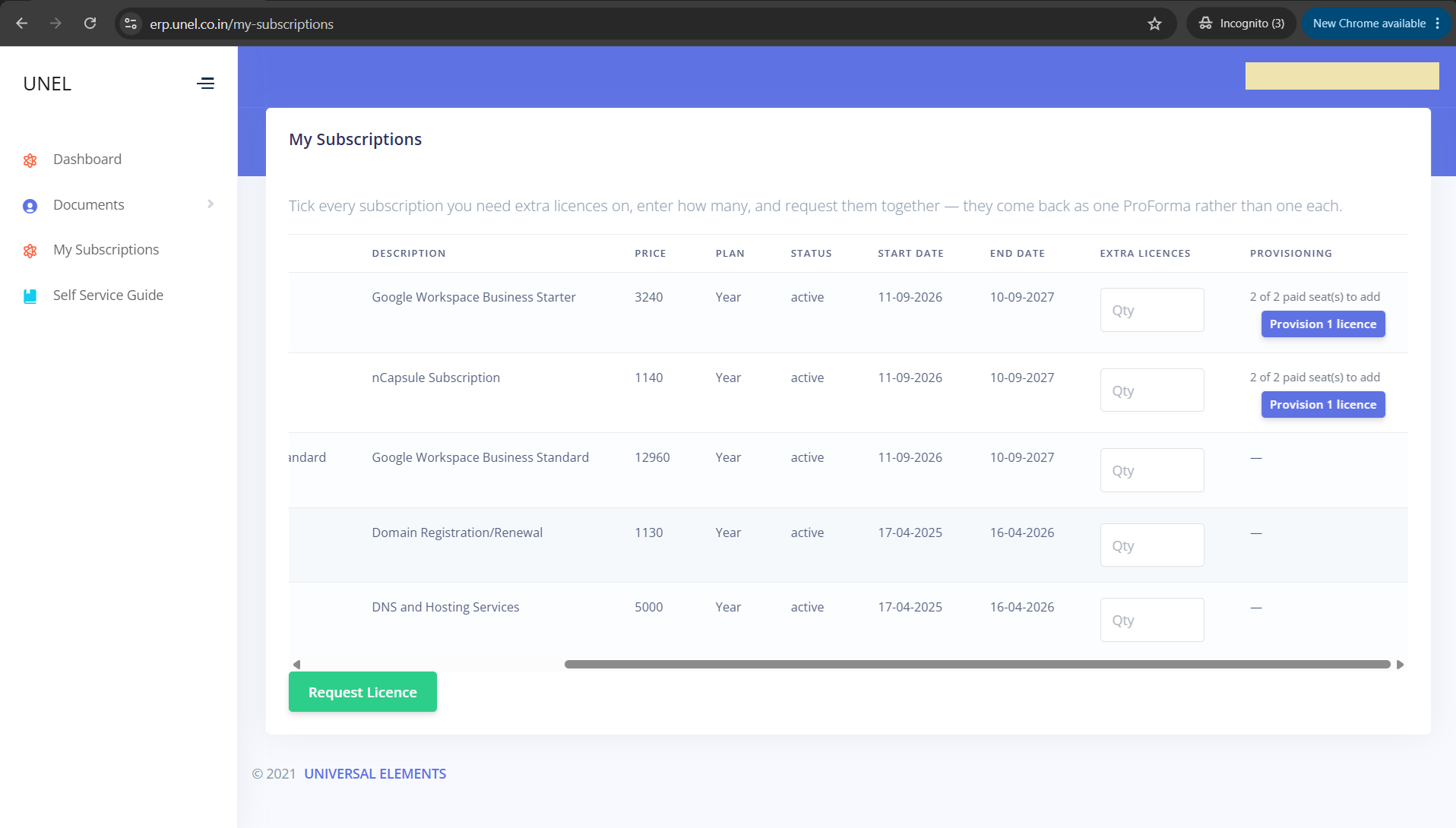
The last column, Provisioning, is where a paid licence request waits for you. Against the subscription it belongs to you will see how many seats are still to be added — for example 2 of 2 paid seat(s) to add — and a Provision 1 licence button. Subscriptions with nothing outstanding show a dash.
What happens when you click
You are asked to confirm, and the confirmation names the subscription so you can be sure it is the right one. Confirm, and the seat is added straight away. The screen comes back with the new total — “1 licence added — Google Workspace Business Starter on yourdomain.com now has 7 seats.”
Assigning the seat to a person
Adding the licence increases the number of seats on your subscription. Creating the user account and giving them that seat is done in your own Google Admin console, exactly as you do today.